
How to clip Kick streams
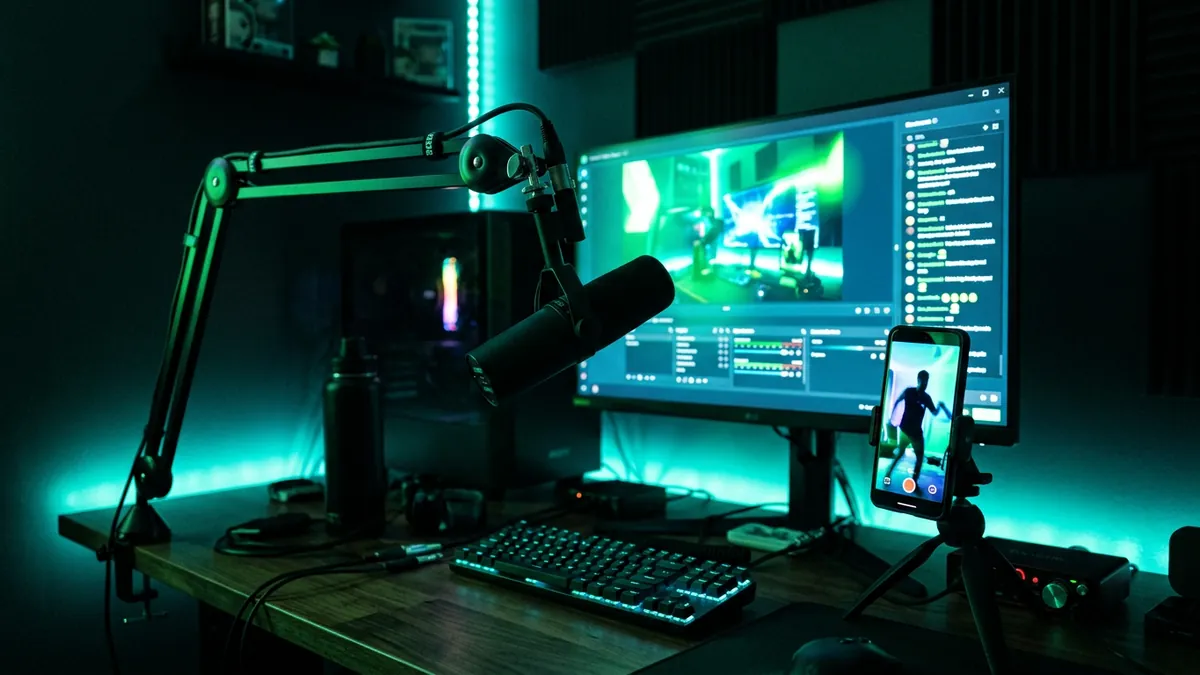
To clip a Kick stream, log in, press the Clip icon or the C key while watching, trim the clip to between 10 and 180 seconds, add a title and publish it. You can then download it as an MP4 and reframe it as a vertical video for TikTok, Shorts or Reels, as long as you own the stream or have the streamer's permission to repost it.
Before you start: clipping and permission
Making a clip on Kick and reposting it somewhere else are two different things. Kick's Clip button lets logged-in viewers make clips that stay on Kick, on the streamer's channel. The streamer can delete those clips or switch clipping off for their channel.
Downloading that clip and posting it to TikTok or YouTube is a repost of someone else's content. Do it only if the stream is yours or the streamer has given you permission. For most clippers, that permission comes from a clipping campaign, where a creator pays people to post clips of their streams. Our beginner's guide to clipping explains how those campaigns work.
Copyright is taken seriously on Kick too. Its DMCA strike system has three steps, and an account is banned on the third strike. TikTok and YouTube have their own copyright rules on top of that. A clip being public, or easy to download, does not make it yours to reuse.
How to clip Kick streams with the built-in Clip button
Kick has its own clip tool on the website and in the app. These steps follow Kick's help article on how to create clips on Kick.
- Log in to your Kick account. You cannot make clips while logged out.
- Open the live stream (or a past broadcast, see below).
- Press the Clip icon, or press C on your keyboard, just after the moment happens. Kick grabs a stretch of the stream around that point.
- Trim it. In the Create clip window, drag the slider so the clip starts just before the moment and ends just after it.
- Add a title. Keep it short and describe what happens, so the streamer and their viewers can find it.
- Press Publish. The button shows "Publishing to KICK" while it works.
- Share or download it. Once published, you can send it to the streamer's chat, copy its link, or press Download to save it as an MP4 file.
New clips can take a few minutes to process. If yours does not appear straight away, Kick's page on clips not saving or clip errors suggests refreshing the page or restarting the app, and checking your clip library.
Kick's clip rules and limits
These are the limits Kick states in its own help pages. Platforms change their features, so check the linked pages if something does not match what you see.
| Rule | What it means for you |
|---|---|
| Clip length is 10 to 180 seconds | Three minutes is the maximum, on desktop and mobile. Use the slider to make it shorter. |
| You must be logged in | Clipping is not available to logged-out viewers. |
| 60-second cooldown | After one clip, you wait a minute before you can make another. |
| No clipping if you are banned from the chat | A chat ban on that channel also blocks clipping there. |
| Streamers can turn clipping off | If the button is missing or greyed out, the channel may not allow clips. |
| Short wait after a stream starts | Clipping may not work in the first moments of a broadcast. |
| Only the channel owner can remove clips from the channel | If a clip you made disappears, the streamer most likely deleted it. |
If the clip does not cover the moment you wanted, it is usually because you pressed too late or the stream had a short interruption. Press soon after the moment, then trim, rather than waiting to see how it plays out.
Clipping past broadcasts (VODs)
Kick's main clip article says you can create clips from VODs as well as live streams, though sending a VOD clip to chat is not available. Its troubleshooting article is more cautious and says clips are generally made from live streams. In practice, if you see the Clip icon on a past broadcast, you can use it. If you do not, the channel may not allow it.
VOD clipping is useful when you are catching up on a long stream. Watch at a higher playback speed, note the timestamps of anything that made chat explode, then go back and clip each one carefully.
Turning a Kick clip into a TikTok, Short or Reel
A Kick clip downloads as a wide video. Posted as it is to a vertical app, it sits as a thin strip with black bars. To make it work on TikTok, YouTube Shorts and Instagram Reels, it needs a few changes.
- Download the clip as an MP4 from Kick, or use your own recording if it is your stream.
- Trim it tighter. The Kick clip may include build-up that works for viewers who know the stream but loses strangers on a phone. Start as close to the moment as you can. Our guide to the best clip length for TikTok, Shorts and Reels goes deeper.
- Reframe to 9:16. Put it on a 1080 x 1920 canvas. If the streamer has a face cam, a split with the face on top and the game or content below usually works best. See face cam and gameplay split screen for vertical videos for exact sizes.
- Add captions. Many people watch with the sound off, and Kick streams often have chat noise and music under the voice. Bold captions make the clip followable. Our guide to adding captions to gaming clips covers the details.
- Add a short title on screen that sets up the moment without giving away the punchline.
- Check the platform's own limits. For example, YouTube counts square and vertical videos of up to three minutes as Shorts, according to its page on three-minute Shorts.
- Follow the campaign's rules. If you are clipping for a campaign, it may require a tag, a link, a credit to the streamer or a minimum length. Read them before you post, not after.
Any video editor that can set a custom canvas and add text can do all of this. The work is the same whatever you use.
When the Clip button is not enough
The built-in button is quick, but it has gaps. You can only make one clip a minute, you can only go up to three minutes, and every clip needs reframing and captions afterwards. If you clip one streamer for hours at a time, those gaps add up.
Some other ways to work, depending on your situation:
- If it is your own stream, record locally in OBS while you stream. You get a full-quality copy of everything, with no clip limits, and you can cut clips from it later in any editor.
- If you clip a streamer through a campaign, ask whether they provide recordings or a shared folder of VODs. Working from the full recording gives you more room to choose where a clip starts and ends.
- If you want to catch moments live, use a tool that keeps a rolling recording of the stream so you can save a moment just after it happens.
Clipper X works this last way on Windows. In its Live page, you can paste a public Kick link (for a stream you own or have permission to clip), and it keeps up to the last 15 minutes of the stream. Press Clip that or the C key right after a moment to save 25, 40, 55 or 70 seconds, and it can turn each moment into a captioned vertical clip or save it raw for you to edit later. You keep watching the stream on Kick as normal. It can also open a public Kick video from its link in Clips. The Clipper X guide has the full steps.
What makes a good Kick clip
The same things that work on any platform work for Kick clips. A few points are worth stressing, because Kick streams are often long and chat-heavy.
- Clear reactions. Big laughs, shock, rage or a sudden silence. A face cam makes these readable without context.
- Moments that need no backstory. Inside jokes that rely on hours of stream history usually fall flat with strangers. Pick moments a new viewer understands in a few seconds.
- Chat reactions as a signal. When chat suddenly floods, something happened. Note the time and check it.
- Short, complete stories. A setup, a payoff and an exit. Cut the slow lead-in and end soon after the punchline.
- Content the platforms allow. Some stream content may break TikTok, YouTube or Instagram rules even if it is fine on Kick. Check the destination platform's community guidelines before posting anything you are unsure of.
Be realistic about results. Most clips get few views, and a lot of clipping is testing many moments to find the few that travel. If you are paid through a campaign, what you earn depends entirely on that campaign's terms, and many clips earn nothing.
Common mistakes
- Reposting without permission. Kick letting you clip a stream does not give you the right to post it elsewhere. Clip your own streams or work through a campaign.
- Pressing Clip too late. Press soon after the moment and trim, rather than waiting for it to finish.
- Posting the wide clip as it is. Black bars and a tiny picture lose viewers on a phone. Reframe to 9:16.
- Skipping captions. Without them, sound-off viewers scroll past.
- Keeping the whole three minutes. The Kick limit is a maximum, not a target. Most good moments need much less.
- Ignoring the campaign brief. Missing a required tag or credit can mean a clip does not count.
Frequently asked questions
How long can a Kick clip be?
Kick clips can be between 10 and 180 seconds long, so three minutes is the maximum. You set the length with a slider before you publish.
What is the shortcut to clip on Kick?
Press C on your keyboard while watching a stream, or click the Clip icon. You must be logged in.
Why can I not clip on Kick?
Common reasons are being logged out, the streamer having turned clipping off, being banned from that channel's chat, the 60-second cooldown after your last clip, or the stream having only just started. Refreshing the page or restarting the app can also help.
Can I download Kick clips?
Yes. Open the clip and press Download to save it as an MP4 file. Only repost it elsewhere if you own the stream or have the streamer's permission.
Can you clip a Kick VOD?
Kick's clip help article says you can create clips from VODs, although you cannot send a VOD clip to chat. If the Clip icon is missing on a past broadcast, the channel may not allow it.
Can I post Kick clips on TikTok or YouTube Shorts?
Only if the stream is yours or the streamer has given you permission, for example through a clipping campaign. Reframe the clip to vertical 9:16 and add captions before posting.
Keep reading
 How to clip Twitch streams for TikTokHow to clip Twitch streams for TikTok: get permission, save the footage, find the moment, frame it for 9:16, add captions and post with credit.
 How to find viral moments in a long streamHow to find viral moments in a long stream fast: use chat spikes, loud reactions, replay graphs and transcripts, then pick clips that work for strangers.
 Clipping without copyright strikes: rules every clipper should knowHow to clip streams without copyright strikes: claims vs strikes on YouTube, TikTok and Twitch, permission, music, myths and what to do if you get one.